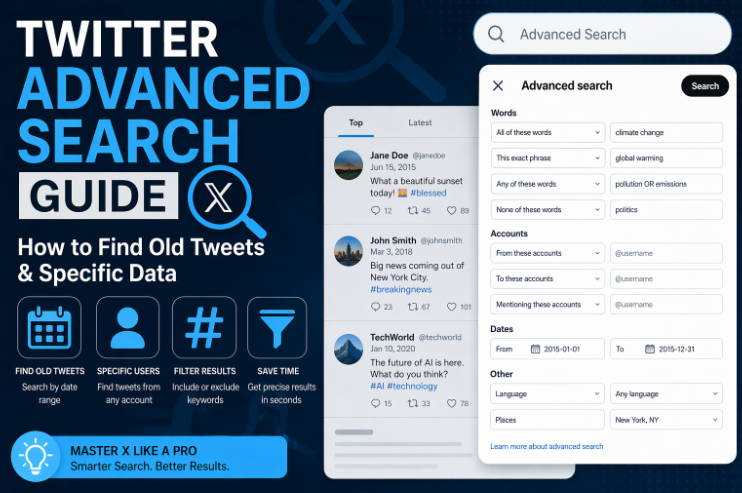
Have you ever tried to find a specific tweet from years ago but got lost in a sea of noise? You are not alone! The standard search bar on X (formerly Twitter) is okay for general topics, but when you need to dig deep, you need twitter advanced search. This tool is like a magnifying glass for the internet. It lets you filter through millions of posts to find the exact “needle in the haystack.” Whether you are looking for a funny joke a friend made in 2015 or tracking a breaking news event in a specific city, this feature makes it happen in seconds.
Most people just type a word into the top bar and hope for the best. That is a slow way to work. By using the advanced dashboard, you can tell the platform exactly what you want to see and, more importantly, what you want to hide. It is the best way to clean up your feed and get straight to the facts. Throughout this guide, I will show you how to master this tool so you can save time and find the best information on the platform.
Quick Summary Table: Twitter Advanced Search Filters
| Filter Type | What it Does | Example Use Case |
| Words | Finds exact phrases or hashtags | Finding a specific quote or slogan |
| Accounts | Searches tweets from specific people | Seeing what a celebrity said about a brand |
| Engagement | Filters by likes, replies, or retweets | Finding the most popular posts on a topic |
| Dates | Sets a specific start and end time | Looking for news from July 2021 |
| Links | Includes or excludes posts with URLs | Finding pure text conversations |
How to Access the Twitter Advanced Search Dashboard
Getting to the advanced menu is actually a bit of a secret! If you are on a desktop, you won’t see a button for it right away. First, you have to type something into the basic search bar and hit enter. Once the results page loads, look for the three little dots (the “More” menu) next to the search bar. Click that, and you will see twitter advanced search as an option. It will pop up a big box with lots of empty spaces for you to fill in.
On mobile, it is a little different. The app doesn’t always show the full dashboard, so many pro users prefer using a mobile browser like Safari or Chrome. You can also simply type “search.twitter.com/search-advanced” into your browser to go there directly. I personally keep this link bookmarked because it saves me so many clicks every single day. Once you are in, you have full control over the entire history of the platform.
Using Keywords and Exact Phrases Effectively
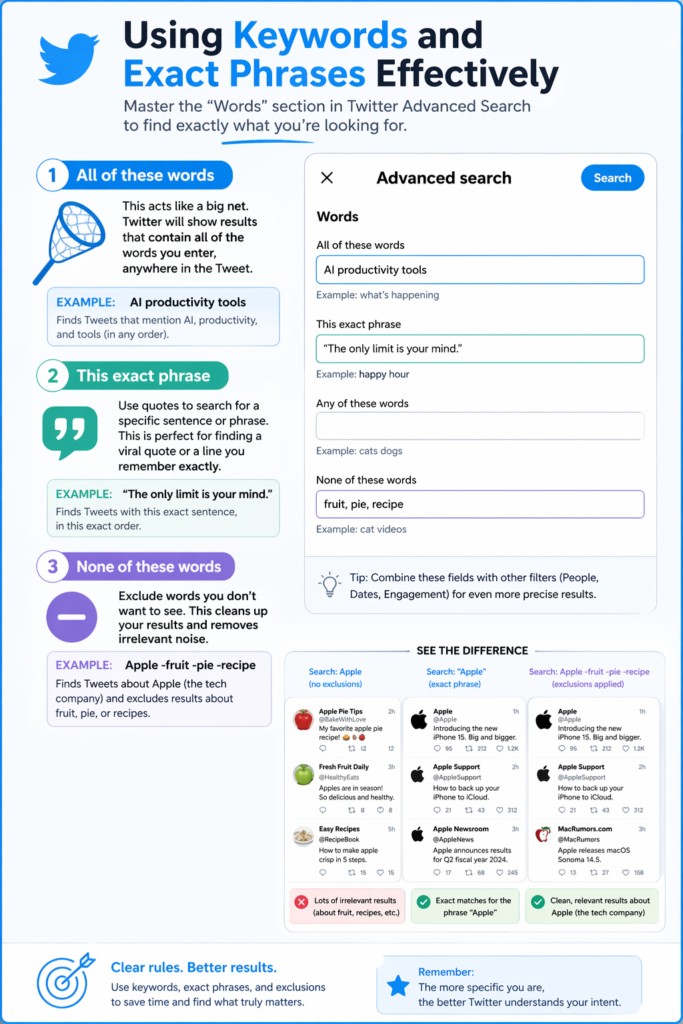
The “Words” section is the heart of twitter advanced search. Here, you can choose “all of these words,” which acts like a big net. If you want to be more specific, use the “this exact phrase” box. This is perfect if you remember a specific sentence from a viral post but can’t remember who wrote it. It prevents Google-style results where the words are scattered all over the page.
Another powerful tool is the “none of these words” box. If you are searching for “Apple” but keep getting results about the fruit instead of the tech company, just put “fruit, pie, recipe” in the exclusion box. This cleans up your results instantly. Using these semantic signals helps the algorithm understand your intent. It’s like giving the search engine a set of very clear rules to follow so you don’t waste time scrolling.
Finding Tweets from Specific Accounts
One of the most common reasons to use twitter advanced search is to see what a specific person has said in the past. You can search for tweets sent “from” a specific handle, “to” a specific handle, or even mentions of a handle. This is incredibly helpful for customer service or brand monitoring. For example, if you want to see every time a user complained to a big airline, you would put the airline’s name in the “to these accounts” section.
I find this very useful for checking the consistency of public figures or finding old advice from experts I follow. If an SEO expert posted a tip three years ago, I don’t have to scroll through their entire profile. I just put their username in the “from” box and the topic in the “words” box. It makes the platform feel like a giant, searchable library rather than a chaotic stream of consciousness.
Filtering by Dates: Traveling Back in Time
The date filter is perhaps the coolest part of twitter advanced search. You can set a “From” date and a “To” date to see exactly what was happening at a specific moment in history. This is vital for researchers or anyone curious about how a conversation evolved over time. If you want to see the reaction to a movie on the day it was released, you just set the calendar to those specific 24 hours.
Without this filter, finding old content is almost impossible because the platform prioritizes new stuff. By using the date range, you tell the system to ignore the “now” and focus on the “then.” I’ve used this many times to find my own old memories or to see what the general mood of the internet was during major world events. It’s a digital time machine that is free for everyone to use.
Sorting by Engagement: Finding the “Best” Content
Sometimes you don’t want to see every tweet; you only want to see the ones that people actually liked. In the twitter advanced search menu, you can set a “Minimum Replies,” “Minimum Likes,” and “Minimum Retweets.” If you set the minimum likes to 500, the search will hide all the low-quality posts and only show you the viral ones. This is a great way to find high-quality information or popular opinions quickly.
This is a “secret weapon” for content creators. If I want to know what people find interesting about a topic, I look for the posts with the most engagement. It shows me what questions people are asking and what jokes are landing well. It filters out the “bot” accounts and the “spam” so you can focus on real human interaction. It is all about finding the “signal” in the “noise.”
Searching for Locations and Geotags
Did you know you can search for tweets based on where they were sent? While this only works for users who have their location turned on, it is a powerful way to see local news. In the twitter advanced search filters, you can look for tweets near you or in a specific city. This is amazing during live events like concerts, sports games, or even natural disasters when you need to know what is happening on the ground right now.
I often use this when I’m traveling. If I’m in a new city and want to find the best local coffee shop, I search for “coffee” near my current location. The results are much more authentic than a standard review site because they are real-time thoughts from real people nearby. It adds a layer of “Experience” and “Expertise” to your search that you can’t get anywhere else.
Using Search Operators (The Pro Shortcuts)
If you are in a hurry, you don’t even need to use the dashboard! You can type shortcuts directly into the main search bar to trigger twitter advanced search features. For example, typing from:username “keyword” will show you every time that person used that word. Using since:2023-01-01 will show you posts from the start of last year. These are called “Search Operators,” and they make you look like a total pro.
Learning these shortcuts is like learning keyboard commands on a computer. It makes everything faster. You can combine them, too! You could type to:NASA “moon” min_faves:100 to find popular tweets sent to NASA about the moon. Once you memorize a few of these, you’ll rarely ever go back to the basic search. It’s the fastest way to navigate the massive amount of data on the X platform.
Why Every User Should Use Advanced Search
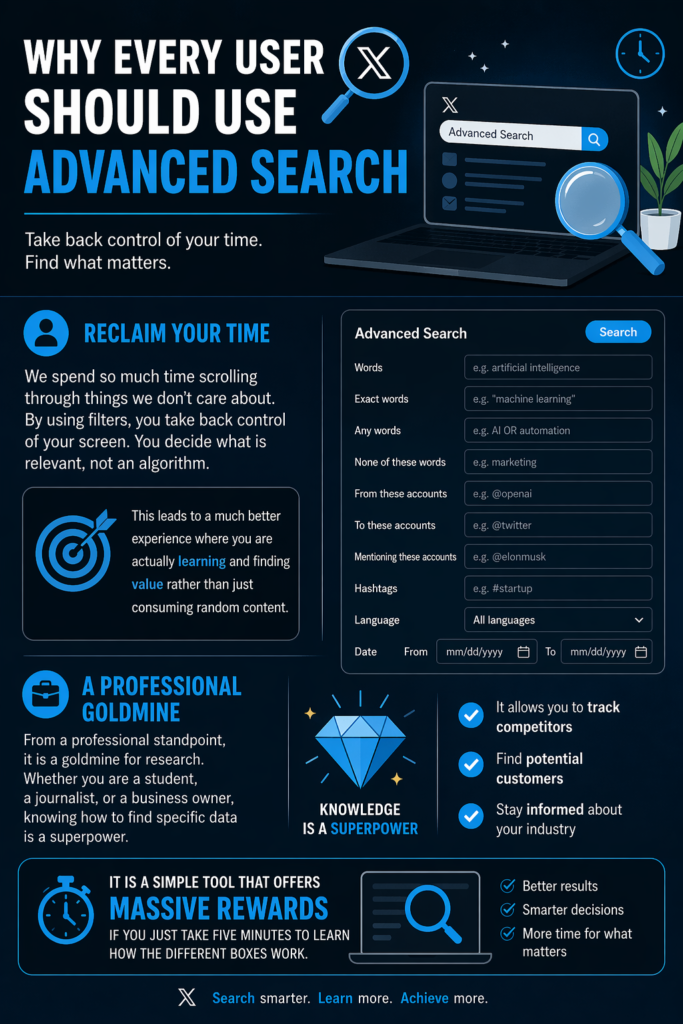
The main reason to use twitter advanced search is to reclaim your time. We spend so much time scrolling through things we don’t care about. By using filters, you take back control of your screen. You decide what is relevant, not an algorithm. This leads to a much better experience where you are actually learning and finding value rather than just consuming random content.
From a professional standpoint, it is a goldmine for research. Whether you are a student, a journalist, or a business owner, knowing how to find specific data is a superpower. It allows you to track competitors, find potential customers, and stay informed about your industry. It is a simple tool that offers massive rewards if you just take five minutes to learn how the different boxes work.
Staying Safe and Private While Searching
When you use twitter advanced search, remember that you can only see public tweets. If someone has a “locked” or private account, their posts won’t show up in your results, even if you follow them. This is part of the platform’s privacy rules. Also, searching for someone doesn’t notify them! You can look for old posts as much as you want without the other person ever knowing you were there.
It is also important to be careful with the information you find. Just because a tweet is old doesn’t always mean it is still true. Always check the date and the source to ensure you are getting “Helpful Content.” The internet changes fast, and what was a fact in 2020 might be different today. Using search responsibly helps keep the digital world a better place for everyone.
Conclusion
Mastering twitter advanced search is one of the best things you can do to improve your time online. Instead of being a passive scroller, you become an active seeker of information. You can find old memories, track important news, and filter out the noise that makes social media feel overwhelming. It turns a chaotic app into a structured database that works for you.
I encourage you to go try it right now. Think of a topic you love, go to the advanced search page, and set some filters. Look for the most liked posts from five years ago or find a conversation between two people you admire. You will be surprised at how much hidden gold is waiting to be discovered. Once you start using these tools, you will never want to go back to the “basic” way of searching again!
Frequently Asked Questions
1. Is Twitter advanced search free to use?
Yes! This tool is completely free for everyone who has an account on X. You do not need a paid subscription to access the advanced search filters or the dashboard.
2. Can I use advanced search on the mobile app?
The full dashboard is mostly designed for desktop browsers. However, you can use search operators (like from: or since:) in the mobile app search bar, or use your phone’s web browser to visit the advanced search page.
3. Why can’t I find a specific tweet I remember?
If a tweet was deleted, or if the account was deactivated or made private, it will no longer show up in twitter advanced search. It only indexes public, active posts.
4. How do I find my own first tweet?
Go to the advanced search dashboard, put your username in the “From these accounts” box, and set the date range to the month and year you joined the platform.
5. Can I search for tweets with only images or videos?
Yes! While the advanced dashboard has some media filters, you can also add filter:images or filter:videos to your search query to only see posts with visual content.
6. Does advanced search work for hashtags?
Absolutely. You can put specific hashtags in the “Words” section to see every public conversation using that specific tag, which is great for following live events.